
Vodafone's Developer Marketplace (DMP) is the place to go for the latest and greatest when it comes to Vodafone's Network APIs. Visitors can navigate through an ever-growing list of APIs and test them out on the portal itself.
But sometimes, developers want to create their own proof of concept or demo app using other tools, such as Postman, while still taking advantage of Vodafone's APIs.
On this blog post, I will guide you through the process of creating the credentials in DMP and how to add them to the API requests in Postman.
Requirements
To complete this tutorial, you will need an account with DMP and another one with Postman. If you don't have one or both, you can follow these links to get them:
Step 1: Getting the Credentials
Go to the "Apps" page of your account:

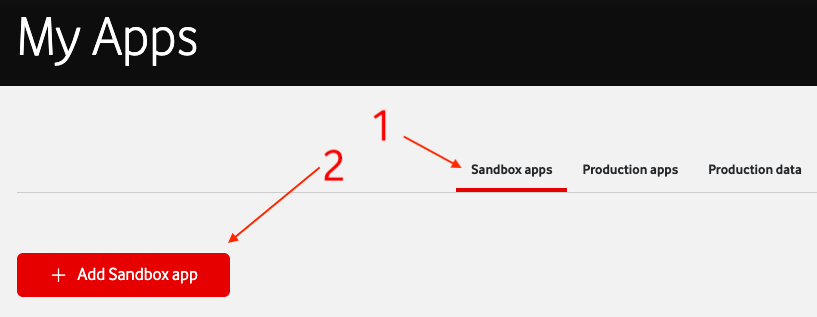
Next, select "Sandbox apps" and then click on the "+Add Sandbox App" button:
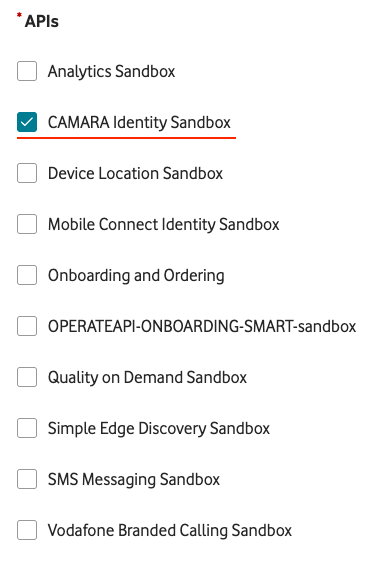
Give your app a name and selcet which group of APIs it will be using. For our example, we will be using the CAMARA Identity Sandbox:
When that's done, click on the "Add app" button.
A green banner should appear on the top of the screen, indicating that the app has been successfully created. A new line should appear on the app list as well, with the newly created app. Click on the eye icon so you can see its details:

By clicking on the "Show" link next to the consumer key and consumer secret, aka client ID and client secret, they will become visible (make sure not to share these with anyone, especially the client secret, as this one is used to authenticate your app against Vodafone's servers):
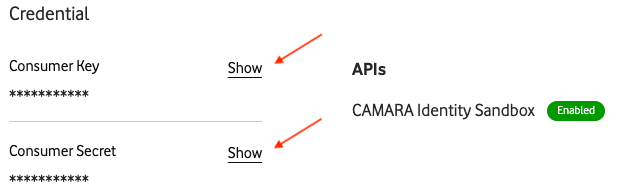
With that, the work on DMP is done and we can move to the next step, Postman.
Step 2: Adding the credentials to requests in Postman
As mentioned in the "Requirements" section, you will need to have an account registered with Postman to finalise this guide.
After you logged in, go to Vodafone Developer's API Sandbox in Postman and select the collection you want to test, in our case, Identity (CAMARA). Click on the ellipsis (...) to open the context menu and select the "Fork" option.
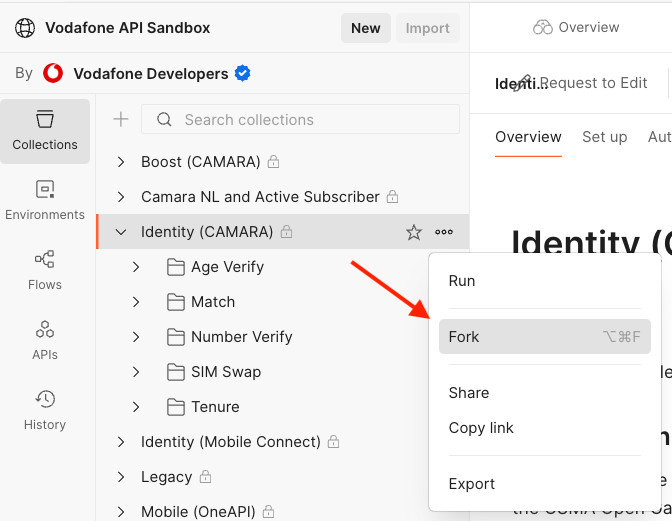
Forking will create a copy of the collection in your own account, which allows you to make modifications to it without any risk of changing the original one. If the owner of that collection makes an update to it, you can simply request a "pull" and your version will be updated.
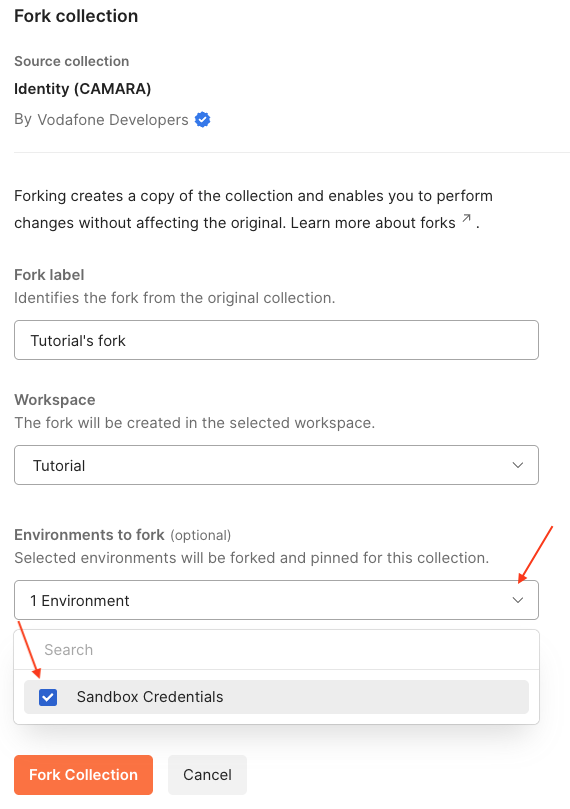
In the "Fork collection" window, ensure that the environment is also selected, as it contains the variables used across the requests and is where the credentials will be input:
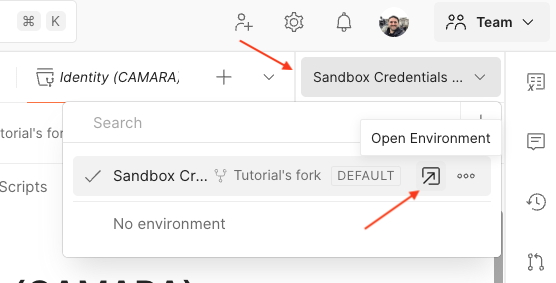
Your browser window will flicker while it refreshes and opens the forked collection in your own workspace. If the "Sandbox Credentials" environment option was selected to be forked as well, you should see a button on the top right side of the screen, under your avatar with that name. Click on it and then on the "Open Environment" button. If you can't see the button, hover your mouse over the name and it should appear:
In this example, you should see three variables:
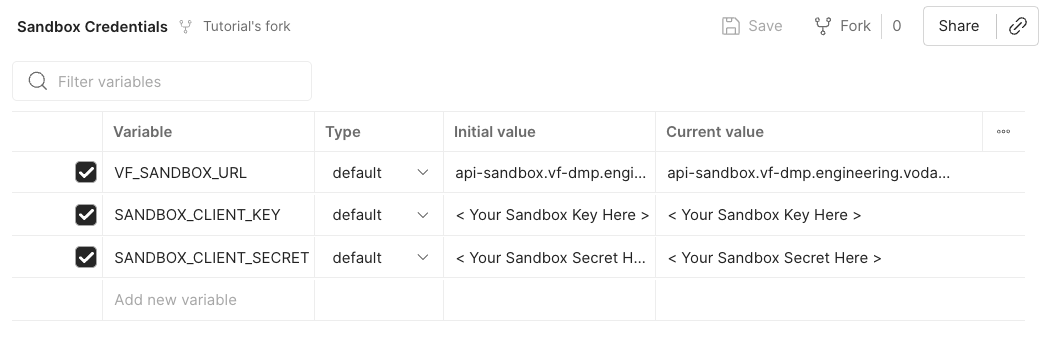
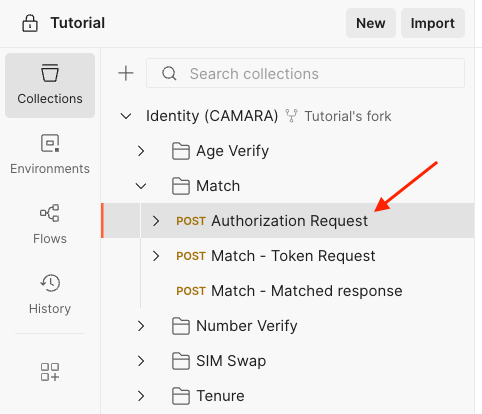
Replace the values in the "Current value" column for "SANDBOX_CLIENT_KEY" and "SANDBOX_CLIENT_SECRET" with the "Consumer Key" and the "Consumer Client" generated on DMP. Make sure the changes are saved (if they are not, an orange dot is displayed on the tab, next to its name) and open the first request, Match's "Authorization Request", as per the screenshot below. Note: Age Verify, Match, SIM Swap and Tenure are available for testing directly from a computer connected to the internet; However, due to its nature, the Number Verify can only be tested from a mobile device, connected to a cellular network, so the steps listed here do not apply to it.
Select the "Authorization" tab and you should see a screen like the one below:
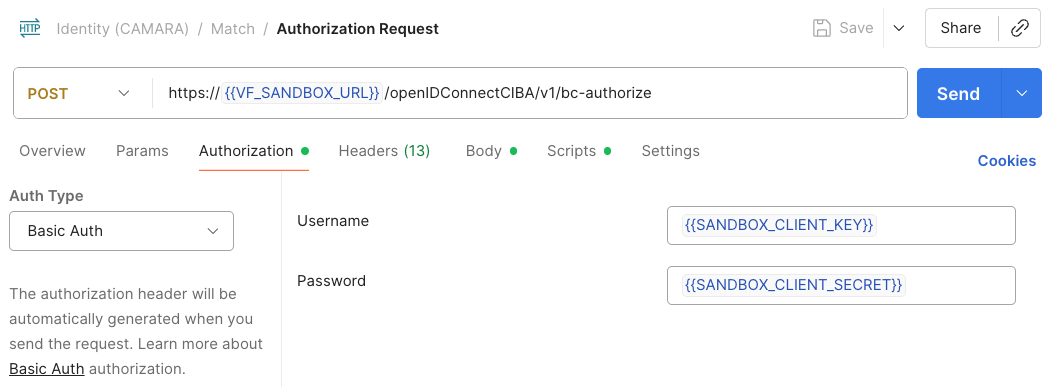
If you hover the mouse over the blue text, the value configured in the environment variables should pop up by the arrow. For example, the "{{VF_SANDBOX_URL}}" should show "api-sandbox.vf-dmp.engineering.vodafone.com". "{{SANDBOX_CLIENT_KEY}}" and "{{SANDBOX_CLIENT_SECRET}}" should be the same as the ones in your app in DMP. One last item to check before submitting the request is its body, so click on the "Body" tab and you should be greeted with the following screen:
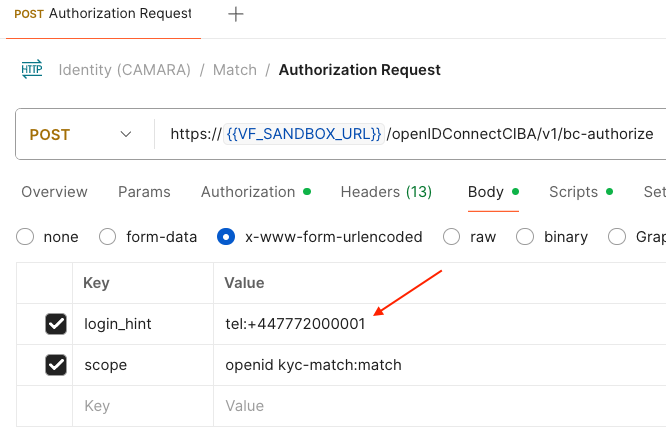
The "login_hint" key contains the mobile number against which the identity attributes provided by the user will be checked in Vodafone's records. Because we are testing on a sandboxed environment, there is a limited choice of numbers that can be used. A list containing the available numbers can be found here. Once all of that has been confirmed, click on "Send" to execute the authorisation request.
A 200 response, i.e. an OK reply from the service indicating that the request was successful, looks like the following:
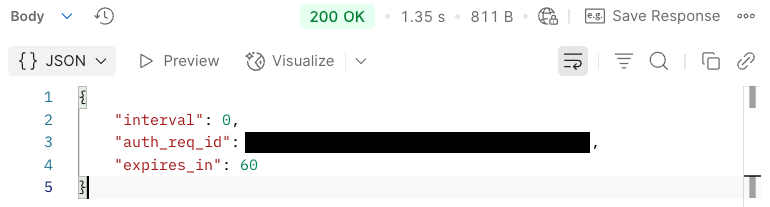
The "auth_req_id" (redacted for security reasons) field contains the id of the authentication request that will be used to request the authentication code. This id is tied to the mobile number form the request's body meaning that if you want to check a different number, a new id must be requested. The value will get copied to an environment variable, so it can be used on the next requests.
Next step is to obtain the authentication code: open the "Match - Token Request". If you want to check the authentication credentials again, you can do it by following the instructions from previous paragraphs. Everything should already be in place, so go ahead and click on "Send". A successful request yields a response like the one below ("access_token" and "id_token" are redacted for security reasons):
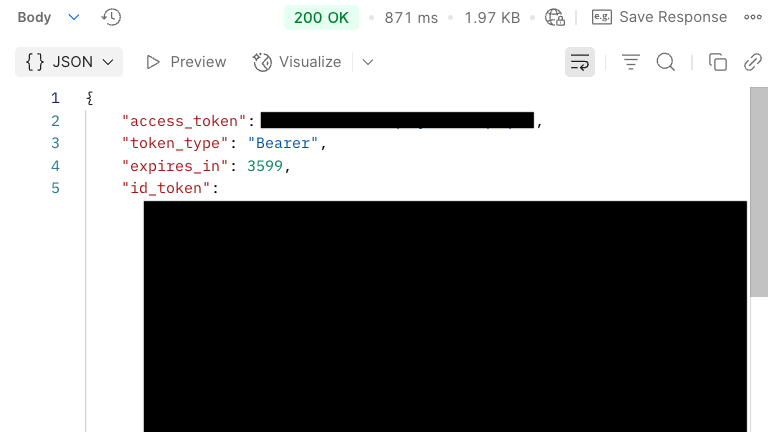
Similarly to "auth_req_id", the "access_token" will be copied into an environment variable, so you don't need to worry about copying it. Finally, open the "Match - Matched response" request and click on the "Body" tab. An example of what it should look like is presented:
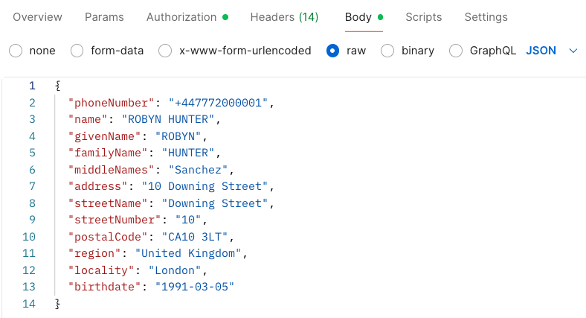
Only the "phoneNumber" is mandatory, as it informs the platform against which records the other fields will be checked. For a list of all supported attributes and their formatting, check this page. Pressing "Send" executes the request and a 200 response will look like below:
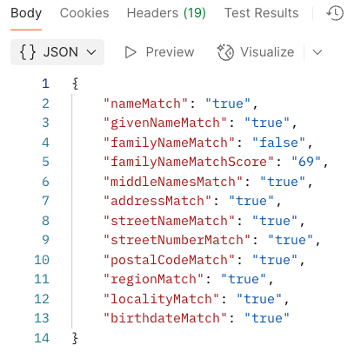
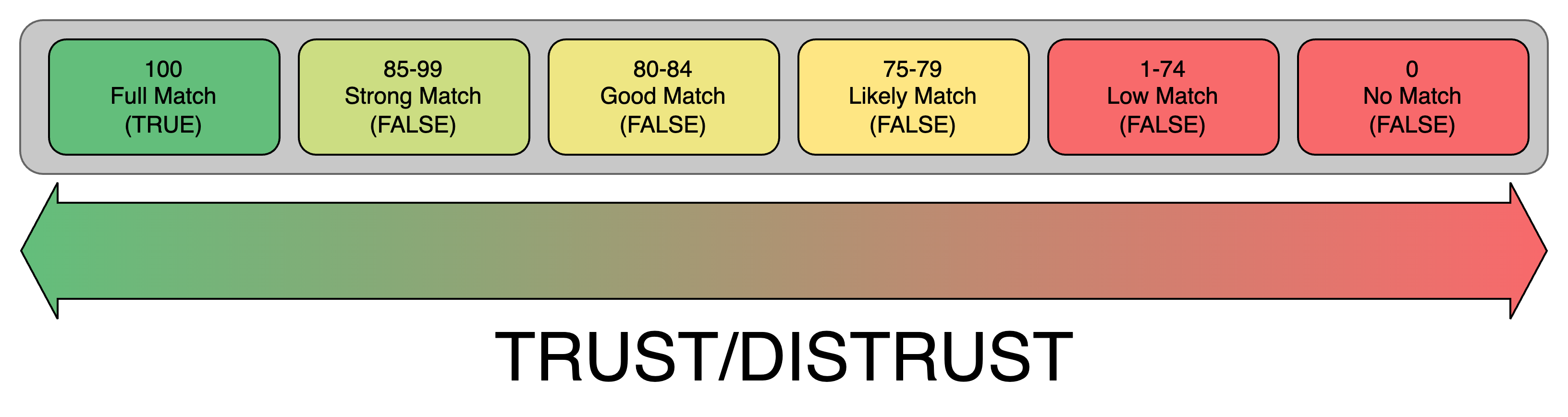
In this example, the family name provided in the body did not result in a perfect match. Instead of simply returning "false", Vodafone's Match (CAMARA) API will return an additional field with the score of the match. It will be on the developer then to decide the threshold of what an acceptable score is. Here is a possible interpretation:
Try it yourself!
Ready to take your development to the next level? Head over to Vodafone's Developer Marketplace and explore the wide range of Network APIs available. Whether you are building a proof of concept, integrating with Postman, or launching a new app, the portal provides everything you need to get started quickly. Sign up, create your credentials and start experimenting with Vodafone's APIs today!


